

On Laying Out your Thesis in InDesign
Most students in the school of architecture are fairly well versed in the use of InDesign for laying out documents. The thesis document that every master’s student needs to complete in order to acquire their degree is yet another one of these documents but with a few specific technical requirements that makes it a thesis book. Some of you may already know about all these features in InDesign and have your own way of putting together a book, but I’d like to share some of my experiences and methods I’ve learned while laying out my own thesis.
On requirements from the University:
I’ll begin at the beginning, the following are my notes on the formatting requirements from the university. It is advisable to take these into account early on so there are less formatting revisions required at the end for the submission to UWSpace. See this University of Waterloo webpage for the original information.
Typography:
- Font size - 10-12 (main) maybe smaller (footnotes/charts)
- Serif typeface (Times New Roman, Palatino etc.) - I kind of ignored this and it was ok
- Consistency in title, heading, footing.
- Each page should include a minimum 1 inch (72 points) margin at the top, bottom, and outer edge of each page. A minimum 1 1/8 inch (81 points) gutter margin should be included for printed copies. Wider margins, as part of an overall graphic design, are acceptable.
- Running headers may be placed outside the margins but not closer than 15mm from the outer edges of a page.
- Consistent British or American spelling
Organization:
- The page number is omitted from the Title page, although it is considered page i.
- Front matter pages are numbered with lower case Roman numerals, beginning with the Author’s Declaration (page ii) following the title page.
- Arabic numerals are used for all pages in the Text (main body) and Back matter.
- Each chapter/section must begin on a separate page.
- The text (main body) of the thesis begins with page number “1,” placed in the centre at the bottom. - this item is strict… must be centred bottom
- All pages in the Text (main body) and Back matter must be numbered consecutively.
Order of items
| Front matter | Page number | Note |
| Title page | i | RequiredDo not display the page number, however, the page must be accounted for |
| Author’s Declaration | ii | Required |
| Abstract | iii | RequiredOnly 1 Abstract must appear in the thesis located within the Front matter |
| Acknowledgements | iv | Required |
| Dedication | v | If applicable |
| Table of Contents | vi | Required |
| List of Figures | vii | If applicableEach figure in the text must be numbered; if the title/caption of the figure cannot fit on the same page as the figure, the title/caption may appear on the previous page facing the figure |
| List of Tables | viii | If applicableEach table in the text must be numbered; if the title/caption of the table cannot fit on the same page as the table, the title/caption may appear on the previous page facing the table |
| List of Illustrations | ix | If applicableEach illustration in the text must be numbered; if the title/caption of the illustration cannot fit on the same page as the illustration, the title/caption may appear on the previous page facing the illustration |
| List of Abbreviations | x | If applicable |
| List of Symbols | xi | If applicable |
| Nomenclature | xii | If applicable |
| Graphic or quote | xiii | If applicable |
| Text (main body) | Note | |
| Footnotes (or Endnotes) may be included in the text | Arabic numerals must begin on the first page of Text (main body) and continue through to the last page of the Back matter | |
| Back matter | Note | |
| Letters of copyright permission | If applicableIt is the student’s responsibility to determine if letters of copyright permission are required | |
| References (or Bibliography) | Only 1 Reference (or Bibliography) section must appear within the thesis located within the Back matter | |
| Appendices | If applicable | |
| Glossary | If applicable | |
| Index | If applicable | |
See this sample for details on formatting the title page
The Author’s Declaration page must appear as follows:
“I hereby declare that I am the sole author of this thesis. This is a true copy of the thesis, including any required final revisions, as accepted by my examiners. I understand that my thesis may be made electronically available to the public.”
Sourcing/ Bibliographies:
- use RefWorks… see librarian for help with resource if necessary
On setting up an InDesign book:
If you anticipate a large file for your thesis, it may be advisable to make separate InDesign documents for each chapter and then combining them into an InDesign book. This introduces a bit of complications but may be worth it if your computer starts to lag with the large file.
Making an InDesign book is fairly straightforward:
- Create a book from the start up menu
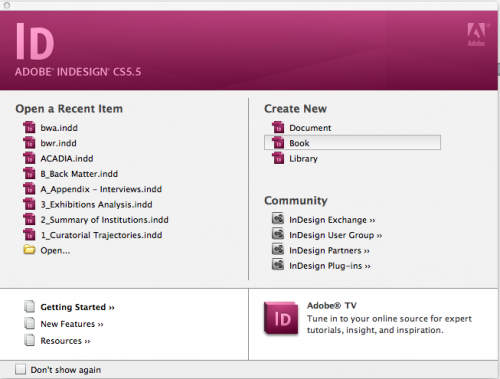
- Setup Book Page Numbering Options
-
- It’s very important to set this up right if you plan on adding or removing pages from your documents – which is very likely to happen
- When you create an InDesign document the first page is generally on the right hand side (an odd page), so when you combined the documents in a book using the “continue from previous page” option that right hand page may become a left hand page (an even page) and screw up the spread layout that you have designed
- Choosing either the “continue on next even/odd page” will allow the document to insert a blank page to the previous document if necessary to keep the spread layout in tact.
- Add documents
Note: you are able to sync all your paragraph and character styles to all your documents through the book control panel, you can set up all your styles in a designated master document and sync it to the rest. Alternatively, you can create a style in any document and import it to the master then sync it to the rest.
On using paragraph and character styles:
Styles are great to setup not just for consistent formatting but also for simplifying the hassle of doing referencing and figure listing, table of contents too – if you want to go that far.
First thing to know about styles is when to create a paragraph style vs. a character style:
Paragraph style – is created for all the different types of paragraphs you will have, for example title, subtitle1, subtitle2, body, figures*, endnotes*, toc, etc. Character style – is created for modifying the look of certain text within a paragraph, such as bold, underline, grey, smaller font etc.
*The following sections will describe how you use these paragraph styles to create endnotes and generate a figure list
Character styles override the appearance of text in the paragraph styles, choosing [none] in character styles would revert the text back to the default character style set by the paragraph style. You can create paragraph and character styles as you see fit for your desired layout. InDesign uses paragraph styles to generate a Table of Contents that updates automatically when you edit the text or when the page number changes.
I was too late in my game to implement this, but there is a program called WordsFlow that allows Word documents to be synced in InDesign. This way, you can place the text, apply the formatting, edit the text and it will update on both Word and InDesign. Unfortunately, since I never used the program, I can’t vouch for the success of the program. However, if it does then you can simply use Word to do your endnotes and disregard the next section.
On doing endnotes with cross-references:
InDesign has the function to do footnotes under the “type” menu so I won’t go into that. Following is the method I used to make my endnotes and hyperlink them. There are probably other ways to accomplish this, I just found this the easiest.
Making endnotes*:
- Create a paragraph style called “endnotes”
- In “Paragraph Style Options” under “Bullets and Numbering” choose “Numbers” for list type – you can change the look of the number under Character style
- Insert/type your endnotes into a text box and apply the “endnotes” style – each note will now have an assigned number
- Make a cross-reference from the body text to the endnote
* for a more detail guide, visit the following website.
On generating a figure list:
The figure list will inexplicably get pretty long and tedious to update. Using cross-reference and paragraph styles, you could generate a list that updates according to the figure description. This set up will also allow figure numbers to rearrange accordingly when you need to insert a new figure in-between two existing ones.
Making the figures:
- Create a paragraph style called “Figures”
- In “Paragraph Style Options” under “Bullets and Numbering” choose “Numbers” for list type
- Under “List” instead of [default] create a new list titled “Figure” or “Jump frame” and select the options as shown in the following image*
- In “Number” type in ‘Figure’ in the field and edit the variables to your preference, you can use “Character Styles” to modify the appearance of the figure number
- Apply the paragraph style to text boxes that hold the descriptions and the figure numbers will appear in order
- Cross-reference the figures to create a list of figures, after you make changes to the figure just open the references panel and update all the warning signs.
- There may be a better way to create this list, I still had to manually insert each cross reference but it saved the time of having to type each number and description out individually.
- I would still recommend doing this step closer to the end of the thesis as sometimes the update gets confused when the figure has shifted around a lot or removed.
- Extra: I had my figure – description – page number as different columns of a table. After creating the cross-references for one column, it is possible to copy it over to the next column, select all and just changed the “Cross-Reference Format”
*This step is important for the figure number to continue counting even when you create separate text frames, for a more detailed explanation visit this website.
Note: if you have set up a book, the file holding the figure list would lag due to the cross references to other files, the solution is to simply have all the files open when you working on the figure list so the computer isn’t trying to open each of the files in the background to check if the references are updated.
Lastly, if you export your pdf with hyperlinks enabled, readers of the digital copy can use the hyperlinks to jump to chapters, endnotes and even figures depending on what links you’ve set up.
I learned most of these tips through Youtube and Indesignsecrets.com, there are lots of good tips to be found. Hopefully this article is a nice comprehensive guide for starting to layout your thesis. Happy thesis writing!




Leave a Reply